


When styling elements in CSS one of the things we can do is add borders. Often used to distinguish one section of content from another, highlight a particular element, or simply as a stylistic choice, borders have been around since CSS 11. Although the basics have stayed the same, what we can do with them has evolved over time, and new properties and values have been added to allow us more flexibility and creativity.
The Box Model
Before we dive into how to style elements with borders, let's first review the box model as it is integral to understanding how borders are applied to an element. The box model defines the dimensions of our elements and is comprised of 4 parts (Figure 1). Starting from the center and moving outward these are
- content
- padding
- border
- margin
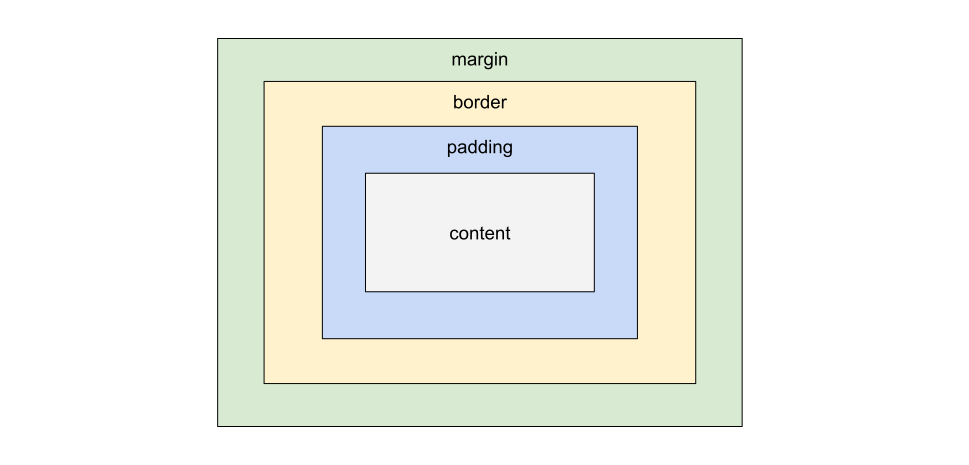
The border places itself between the padding and the margin. The value set on the box-sizing property2 determines if the border is included as part of the size of an element. By default, most browsers have set the box-sizing value to content-box.
content-box applies the size (width and height) given to the element to the content, and any padding and/or border applied to the element will increase it's size. Therefore, an element given the following properties (listing 1), will end up being 122 pixels wide: 100px wide + 20px of padding (10px on each side) + 2px of border (1px on each side) = 122px wide as seen in figure 2.
box-sizing: content-boxdiv {
box-sizing: content-box; /* default value */
width: 100px;
height: 20px;
padding: 12px;
border: solid 1px yellow;
}

box-sizing: content-box applied to a divNow let's switch from using content-box to using border-box. Notice that our div has seemingly shrunk (figure 3).

box-sizing: border-box applied to a divIf we add our content, padding, and border together: 20px of padding (10px on the right and another 10px on the left) + 2px of border (1px on the right and another 1px on the left) + 78px for the content, we end up with a total of 100px. Remember how initially we set our width to 100px in figure 1, when using border-box everything up to the border is included in the dimensions of an element. In other words, the more padding and border is added to the element, the more the area available for the content shrinks.
Whether we stick with the default, or change the value to use border-box is a personal choice. Regardless, the important part is to understand how borders affect our element's dimensions so that we can effectively lay out our content.
The Basics
Now that we understand where borders are applied on our elements and their impact on our elements' dimensions, let's look at how to style the border.
The border property is a shorthand property comprised of:
border-width: how thick we want the border to beborder-style: what do we want the border to look like: hidden, dotted, dashed, solid, double, groove, ridge, inset, outset (figure 4)border-color: what color we want the border to be

border-style property valuesThese properties can be applied to an element individually or all at once using the border property. When using the border shorthand, the styles will be applied to all 4 sides of our element (Listing 2):
div {
  border-width: 10px;
  border-style: dotted;
  border-color: yellow;
  /* is equivalent to */
  border: 10px dotted yellow;
}
Note: When using the border shorthand property, the values can be defined in any order.
If we don't want to add borders to all sides of our elements but only target a specific side, we can use the physical border properties:
border-topborder-rightborder-bottomborder-left
or the logical border properties:
border-block-startborder-block-end
Logical properties are particularly useful when the border's location needs to stay relative to the text since the logical properties' behavior follow the writing mode3 (figure 5).

Border Image
So far, we've seen how to apply a border as long as it's a fairly simple one and exists in the presets available in in CSS. What if we wanted something more custom? In that case, we can use an border-image. There are a couple of ways this can be applied, either via a gradient, or by providing an image file.
let's first look at how we might make a rainbow border using a linear-gradient4 (figure 6 and listing 3).

  div {
    border: solid 10px white;
    --gradient: linear-gradient(135deg, #f890ac, #ffaa71, #ffde96, #aed4ae, #bad8ff, #dcbaff);
    /* source | slice */
    border-image: var(--gradient) 1;
  }
We first define the border as border: solid 1px white. We assigned a color, in this case white, which acts as a fallback in case the border-image fails (although border-image is now well supported across all major browsers)5. We then provided our border-image property with 2 values, the border-image-source (our gradient), and the border-image-slice.
Like border, border-image is a shorthand property to which we can apply values for the following properties:
border-image-source: the source for the image we want to use to create our borderborder-image-slice: can be up to 4 values (1 for each corner) and divides the element into regions used to specify how the border should display around our elementborder-image-width: can take up to 4 values (1 for each side) and represents the width of the image to use as a borderborder-image-outset: the distance between the image and the element's outside edgeborder-image-repeat: how the source image needs adjusted in order to fit the element
Since we didn't use many of these properties, in our previous example using linear-gradient, let's use an actual image file and take a closer look at the effects of each property on the border.
Let's start by applying the following image (figure 7) to our div.
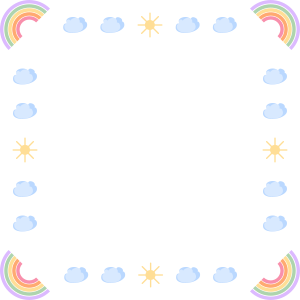
If we use the same border-image-slice property value of 1 we used with the gradient, applied to your div using border-image: url(./border.svg) 1 we get the following results (figure 8).

Not exactly the border we were hoping for. Let's look at the border-image-slice property again to better understand the values we want to give it. When assigning values to this property, we are defining where the corners of our border are, and therefore the areas between the corners as well (figure 9).
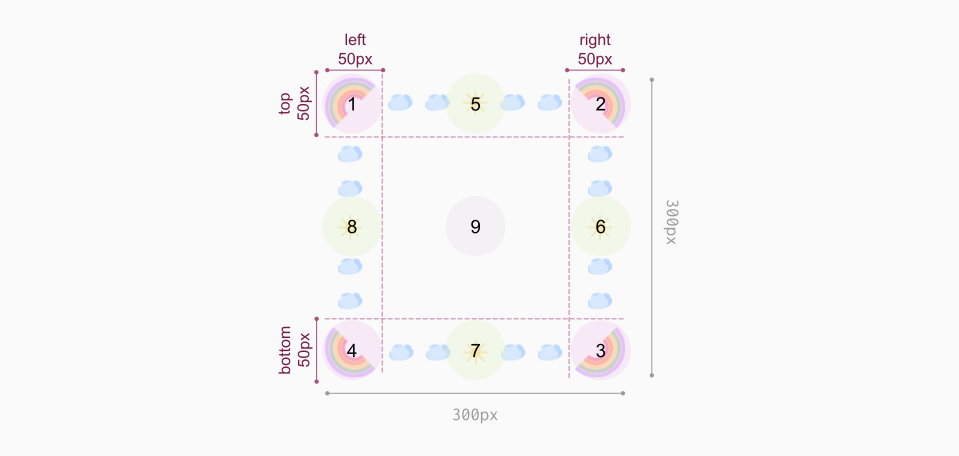
border-image-slice breakdownBased on the breakdown of our image, we need to set our border-image-slice value to 50. Since all 4 corners have the same width, we do not have to set the value 4 times. When only 1 value is provided, the same value is applied to all 4 corners. We are also going to increase the width of our border to 50px so that the border is more visible.
Our resulting CSS class looks as follows:
border-image-slice and border-width div {
border: solid 50px;
border-image: url(./border.svg) 50;
}
Changing our border-image-slice and border-width values solves our initial problem but only as long as our div is square. As soon as we increase the width of our element, the top and bottom sections between our corners stretch. This would not work well for fluid layouts or dynamic content. To control the behavior of the image between the corners, we need to use the border-image-repeat property.
The border-image-repeat property allows us to control how our non corner border sections (sections 5, 6, 7 and 8 on figure 9) are handled. The following values can be applied:
stretch: The image is stretched to fit the available spacerepeat: The image is tiled. If the middle segments don't fit, they will be clipped as demonstrated in figure 10round: The image is tiled. Images may be stretched to fit the available space.space: The image is tiled. If the middle segments can't be fit an exact number of times, the remaining space is evenly distributed between the segments so that the segments are neither stretched nor clipped.

border-image-repeat property valuesFor our particular example, we don't want our image to be distorted, so we can update our border-image property value to border-image: url(./border.svg) 50 space.
We've covered many cool things borders can do, now let's address some of the limitations.
Multiple Borders
An element can only ever have 1 border. So how can we give the illusion that our element has multiple?
We can nest multiple elements, each with a border, however this technique should be kept as a last resort, because it bloats our HTML.
Another option, is to use a combination of border and outline. This would allow us to create 2 distinct "borders" around our element.
Outline
The outline property is similar to border in that it is a shorthand and allows us to set a width, style, and color. However it functions very differently. Borders are part of the box-model and affect the element's size and the reflow of the page. Outlines do not. In other words outlines do not take up space. Notice div 2 in figure 11.

Div 2 has the following CSS applied to it:
border and outline applied to a div /* element containing all three divs */
.container {
display: flex;
justify-content: center;
align-items: center;
}
div.two {
--gradient: linear-gradient(135deg, #f890ac, #ffaa71, #ffde96, #aed4ae, #bad8ff, #dcbaff);
border: solid 10px red;
border-image: var(--gradient) 1;
outline: solid 10px white;
}
The middle div has a border and an outline however, the outline overlaps both the divs that are to it's left and right. z-index is preserved, in that the third div overlaps the second, and the second overlaps the first, but the outline does not push the other two elements out of the way.
If we want to use outline as a "second border" around our element, we must therefore consider the amount of space the outline will take and adjust our margin (or gaps, if using flexbox or grid) accordingly.
Outlines also have slight differences in the styles that can be applied to them compared to borders (figure 12) and unlike borders, they cannot be assigned images, so we are constrained by the available style values.

A cool aspect of outline that is not an option with border (unless using a border-image, but only in a limited capacity), is that we can set an offset in order to create a gap between the outline and our element, or if using a negative value, to have it inset as seen in figure 13.
Note: Negative values only work with outline-offset. They do now work with border-image-outset.

While using outline can give us the illusion of up to 3 "borders" around our elements (a border, a gap, and then an outline), if we want to go wild and add more, we have to use a different technique because like border, elements can only have 1 outline.
Box Shadow
A technique that can be used to simulate multiple outlines uses the box-shadow property6. Since box-shadow allows us to add as many shadows as we want, by omitting any blur we can create sharp lines that simulate a border. Like outline, box-shadow does not take up space, and we will therefore need to adjust our margins and/or gaps accordingly when placing our elements into layouts. Let's look at an example:
box-shadow to simulate multiple borders .box-shadow {
border: dotted 10px white;
outline: dashed 3px black;
box-shadow:
/* x-offset | y-offset | blur | spread | color */
0 0 0 10px #f890ac, /* red */
0 0 0 20px #ffaa71, /* orange */
0 0 0 30px #ffde96, /* yellow */
/* inset | x-offset | y-offset | blur | spread | color */
inset 0 0 0 10px #aed4ae, /* green */
inset 0 0 0 20px #bad8ff, /* blue */
inset 0 0 0 30px #dcbaff; /* purple */
}
Applying the CSS from listing 6, we get the following output:

box-shadow to simulate borders outputUsing box-shadow, a lack of x or y offset, and no blur, we can build a virtually infinite number of shadows both in and out of our element. Where it shines in quality it lacks in it's configurability. box-shadow does not allow for styles or images, therefore, any effect we would want to build would be done by carefully building layers of shadows, in conjunction with borders and/or outlines.
Shapes
So far, we've been looking at examples using square and rectangular shapes. What happens when we alter the shape of our div?
We can do this one of 2 ways, using border-radius7, or clip-path8. Let's look at what happens to each of the techniques presented so far when the shape of the div is altered.
To apply the shapes we will use the following CSS. Border, outlines (both with a gradient and an image), and box shadows will be applied using the same code as in previous examples.
box-shadow to simulate multiple borders .circle {
border-radius: 50%;
}
.heart {
--heart: shape(
from 50% 91%,
line to 90% 50%,
arc to 50% 9% of 1%,
arc to 10% 50% of 1%
);
clip-path: var(--heart);
}

Once the div is given a shape via border-radius (the circles), border images do not curve with the div, but border without images (using border-style), outlines and, shadows continue working. Once a clip-path is applied, none of the solutions we explored so far work anymore. But let's explore one last solution before we resort to nesting multiple divs in order to attain the illusion of a border.
filter: drop-shadow()
Another option not yet explored is the use of the drop-shadow() filter function9. Applied to the parent element of the shape we want to style, the drop-shadow() filter functions works similarly to the box-shadow property but does not have the concept of spread. The function takes 3 parameters: x-offset, y-offset, and blur. Because we don't have the ability to use spread like we did with drop-shadow it makes getting an exact border around our element much trickier. This is especially true for shapes that are not both vertically and horizontally symmetrical, such as the heart in the example. Like the box-shadow property, however, filters can be stacked so we can therefore apply multiple borders to our shape.
<div class="container">
  <div class="heart"></div>
  <div class="heart"></div>
  <div class="heart"></div>
</div>
Our hearts are placed inside of a container div, this is the element on which the filter is placed.
.container {
  /* layout */
  display: flex;
  just-content: center;
  gap: 1rem;

  /* the filter */
  filter:
    /* red */
    drop-shadow(3px -3px #f890ac)
    drop-shadow(-3px -3px #f890ac)
    drop-shadow(0 4px #f890ac)

    /* yellow */
    drop-shadow(3px -3px #ffde96)
    drop-shadow(-3px -3px #ffde96)
    drop-shadow(0 4px #ffde96)

    /* purple */
    drop-shadow(3px -3px #dcbaff)
    drop-shadow(-3px -3px #dcbaff)
    drop-shadow(0 4px #dcbaff)
  }

.heart {
  width: 100px;
  height: 100px;
  background: #505457;
  --heart: shape(
      from 50% 91%,
      line to 90% 50%,
      arc to 50% 9%  of 1%,
      arc to 10% 50% of 1%
    );
  clip-path: var(--heart);
}
Our output looks as follows

Notice that the filters were applied to all of the elements in the container. Furthermore, the shadows created do not exactly form fit each shape. Also worth considering is performance. Filters, especially in large quantities, can negatively impact performance. Therefore, when considering whether this technique is an option for our project we should weigh the imperfections and performance against other solutions.
To end this article on a positive note, let's look at one more trick that sets the drop-shadow() filter apart from the other techniques in this article. Let's add one more small heart inside of one of our existing hearts using the HTML found in listings 10.
<div class="container">
  <div class="heart"></div>

  <div class="heart-group">
    <div class="heart"></div>
    <div class="heart small"></div>
  </div>

  <div class="heart"></div>
</div>
Now let's absolute position it at the top right of the heart-group container.
.heart-group { position: relative; }

.heart.small {
  width: 10px;
  height: 10px;
  background: lightgrey;
  position: absolute;
  top: -6px;
  right: -5px;
  z-index: 2;
}
Our drop-shadow now wraps both the shapes combined rather than each shape individually (figure 17).

Wrapping up
In this article we covered several techniques to create borders including:
- the use of the
bordershorthand property - physical versus logical properties when targeting a specific side of an element
We also also explored alternative techniques to overcome the limitations of elements only being able to have a single border including the use of:
- outlines
- the
box-shadowproperty - the
drop-shadow()filter function
Code samples demonstrating the techniques presented in this article can also be found on github at https://github.com/martine-dowden/css-borders.
Happy Coding!