


Anytime you want to access files or APIs from a web client you need to be sure Cross-Origin Resource Sharing (CORS) is configured to allow access from any domain that is a legitimate part of your application. When using Firebase and GCP this is straightforward to set up for hosting and API functions, but is not as simple to configure for the Storage Bucket for accessing files via the Firebase SDK.
One telltale that you have a problem will be an error that looks something like this:
Access to fetch at 'https://firebasestorage.googleapis.com/v0/b/project-name.appspot.com/o/path/file.json?alt=media&token=xyz' from origin 'https://project-name.web.app' has been blocked by CORS policy: No 'Access-Control-Allow-Origin' header is present on the requested resource.
In my most recent case, we were using fetch() in the web client to download a gzipped JSON file from the bucket using the downloadURL when encountering this error.
To get this resolved, there are four basic steps:
- Determine the correct CORS settings
- Create a cors.json file in the GCP console
- Apply the settings to the storage bucket
- Test your application to ensure everything works
The correct settings will need a list of origins, which are the URLs (protocol, domain, subdomain) from which you'll be calling the API. Using the default Firebase hosting this will generally be subdomains on web.app and firebaseapp.com. You'll also need a list of methods you'll be performing on resources, such as GET for fetching files. You shouldn't need other methods for storage buckets as you should use the SDK directly instead of fetch() for these operations. The final cors.json file should look something like this:
[
  {
    "origin": [
      "https://project-name.web.app",
      "https://project-name.firebaseapp.com"
    ],
    "method": ["GET"],
    "maxAgeSeconds": 3600
  }
]
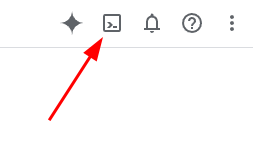
The easiest way to load up this file is to start by accessing the GCP console at https://console.cloud.google.com. Then click the Cloud Shell icon to open the terminal.
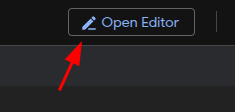
From the terminal, click the Open Editor button to open the text and code editor.
With the editor open you'll create the new cors.json with your configuration. Once done, click Open Terminal to return to the command shell, where you'll type the following command.
gsutil cors set cors.json gs://project-name.appspot.com
Be sure to replace gs://project-name.appspot.com with the URL to your specific cloud storage bucket. Once the command finishes running, you should be done! Be sure to go back to your application and do further testing to ensure you're not getting any additional CORS or permissions errors.
The first time I encountered this problem I wasn't able to find cohesive documentation on the solution and had to figure it out from a number of sources, so I put this guide together to help you (and future me). As always, please let us know if you found this helpful and if you encounter any issues.