


When it comes time to take a project live, one of the most important technical details related to branding and launch is getting your own custom domain name pointed at your software. While Firebase makes this easy, it can take awhile to figure out all the steps involved, so we'll lay it all out at once here.
Start by launching the Firebase Console.
Hosting Domain
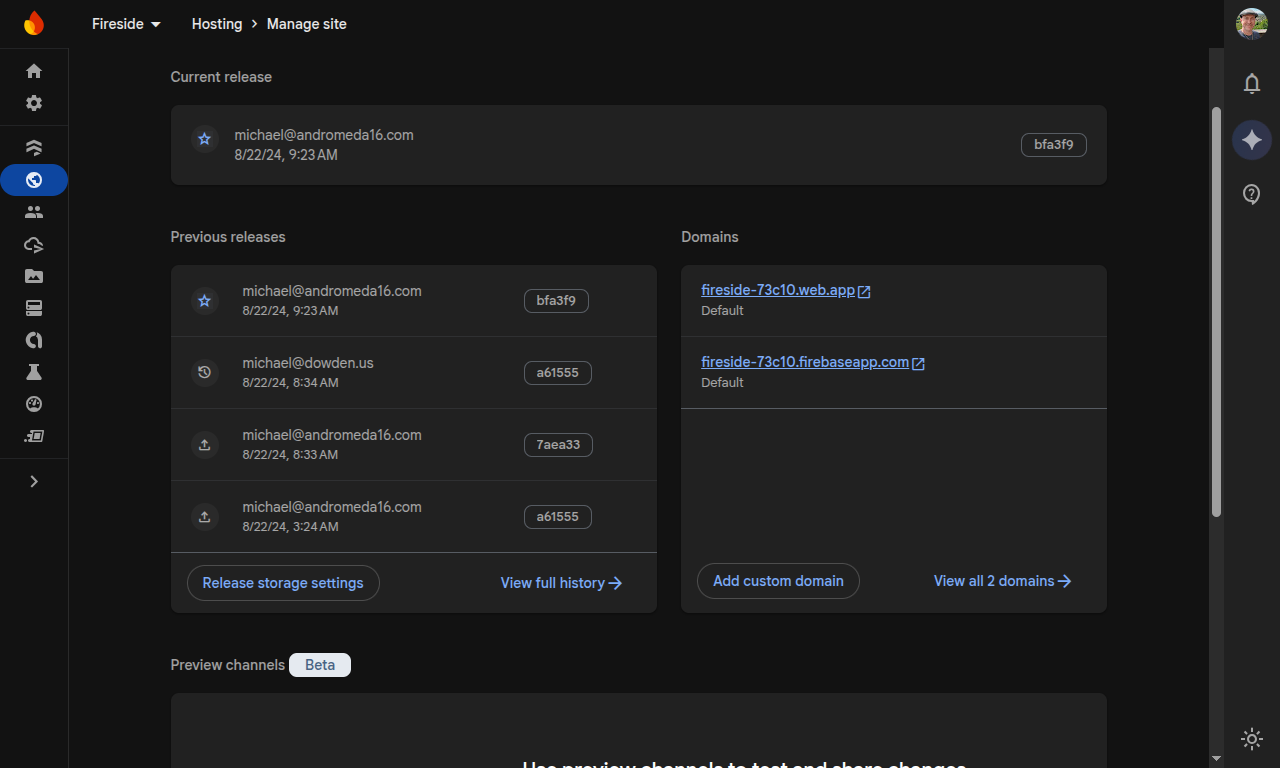
To access domain configuration for hosting, you'll navigate to Hosting within your project and then select the hosting site you want to configure. There will be a list of default domains (these will be subdomains of web.app and firebaseapp.com) and a button to add custom domain.
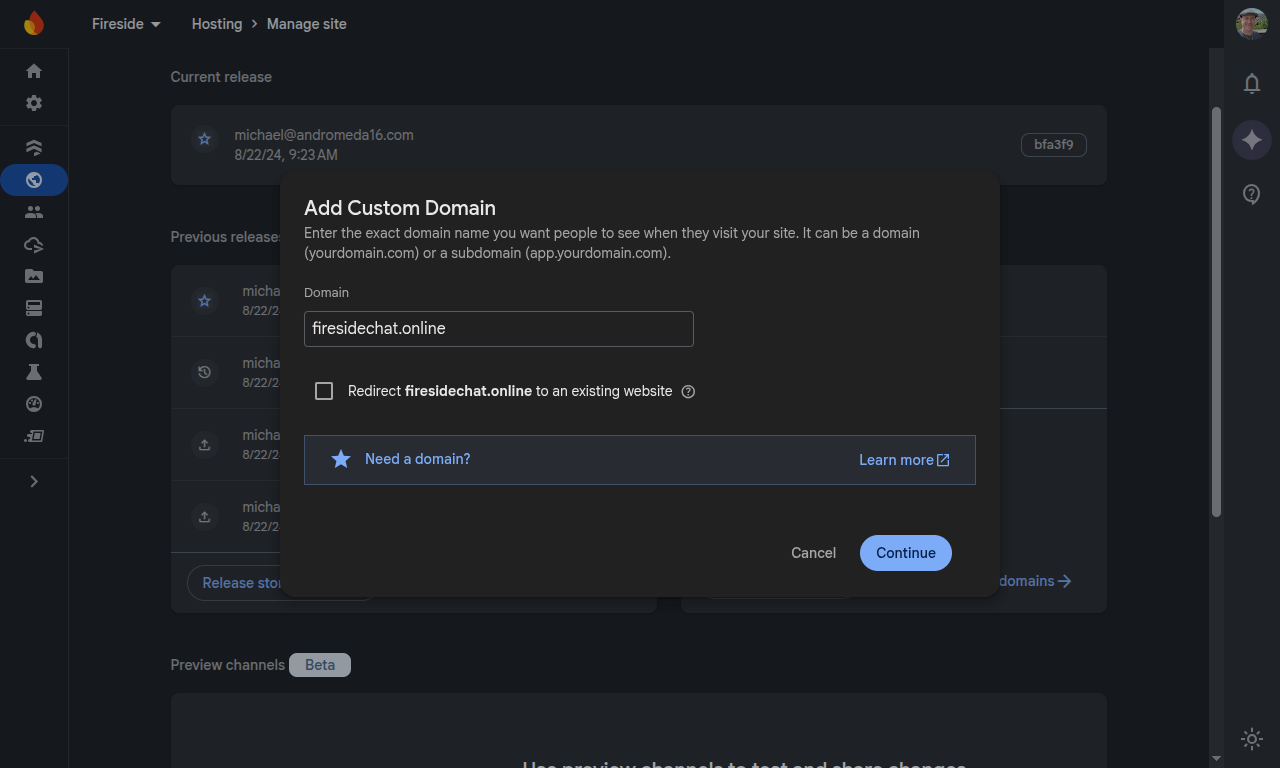
Type your domain in the dialog and click continue. If you want subdomains (such as www.) or secondary domains to redirect to your main domain, you can check the "Redirect MyDomain to an existing website" box.
Now you'll be given the exact DNS configuration details that you'll need to setup at your DNS/domain provider. Be sure to copy the settings exactly.
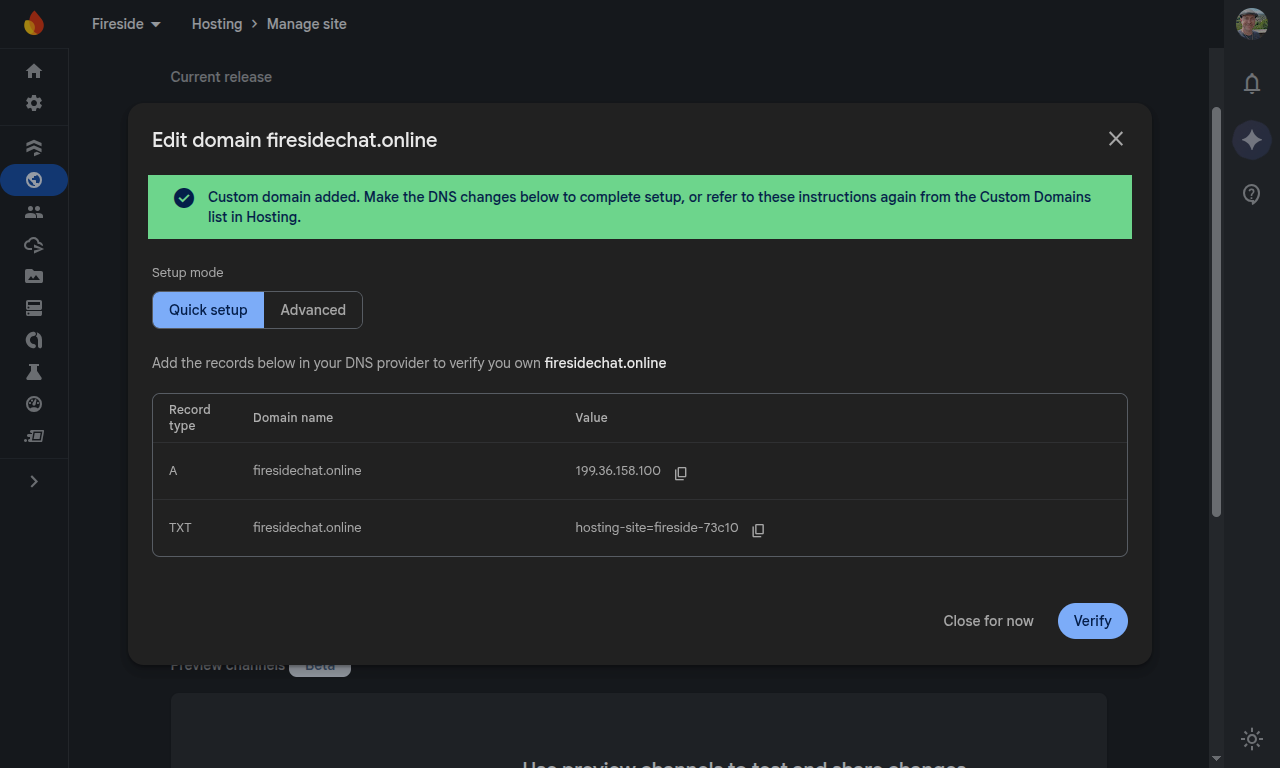
Note that it will take anywhere from 5 minutes to a few hours for the updates to show up here. While waiting the domain will show "Needs setup".
Authentication Domain
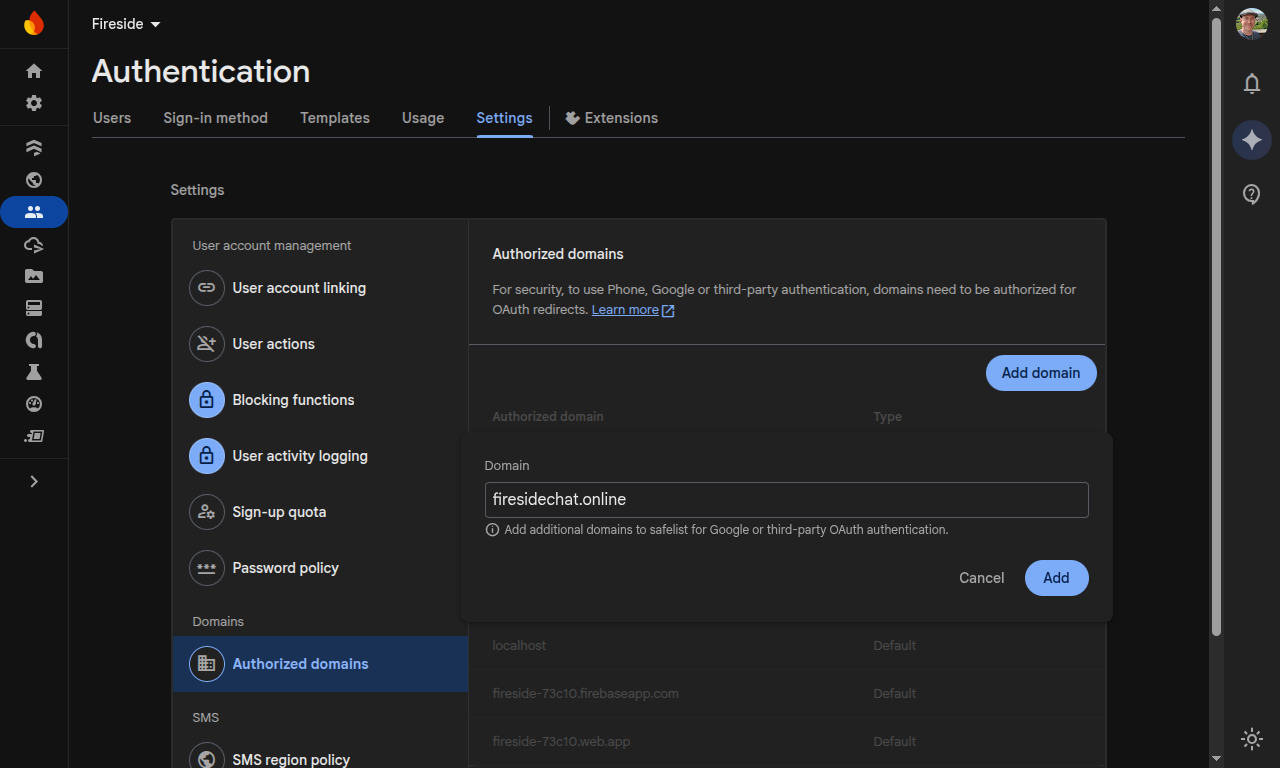
The next place you'll want to customize your domain is in the Authentication section. Without this, any authentication messages, emails, or notifications will come from the default Firebase project domain instead of something your customers recognize. Open Authentication and Settings in the menu and then select Authorized domains. You'll see the default domains listed.
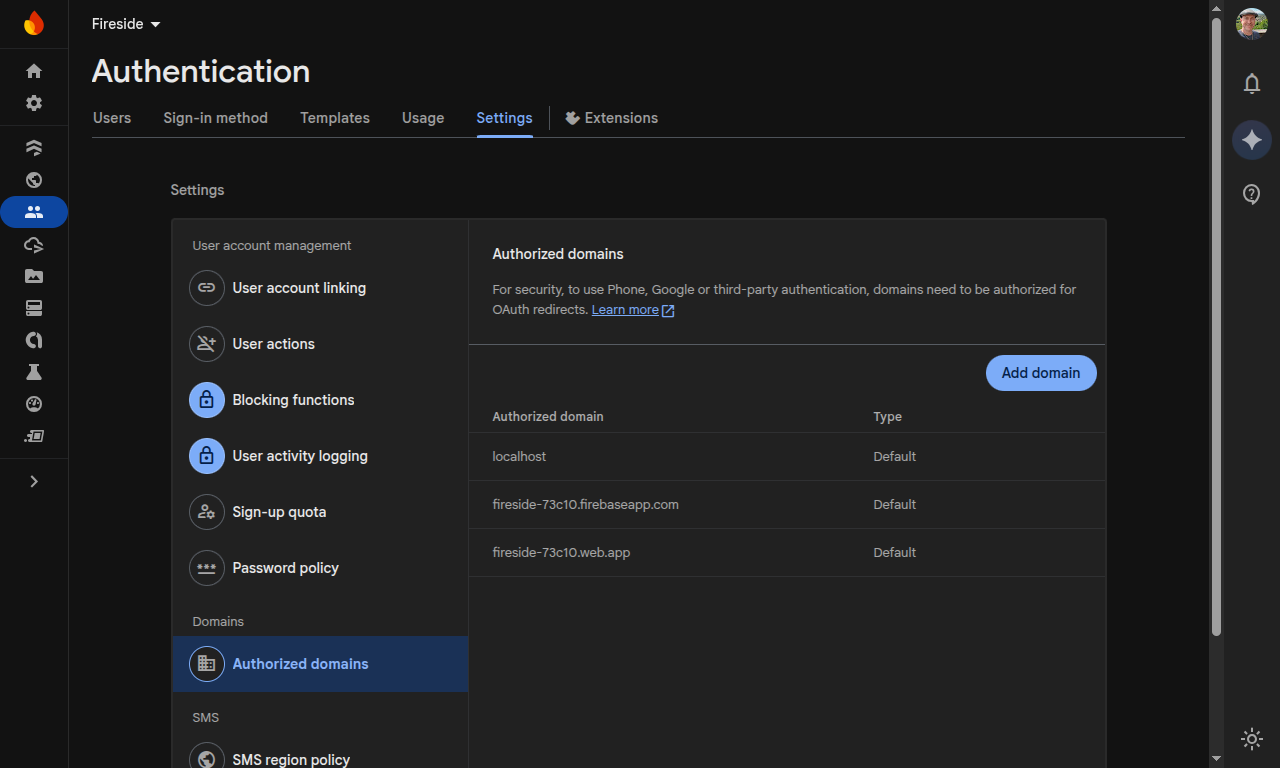
Click "Add domain" and then enter your custom domain.
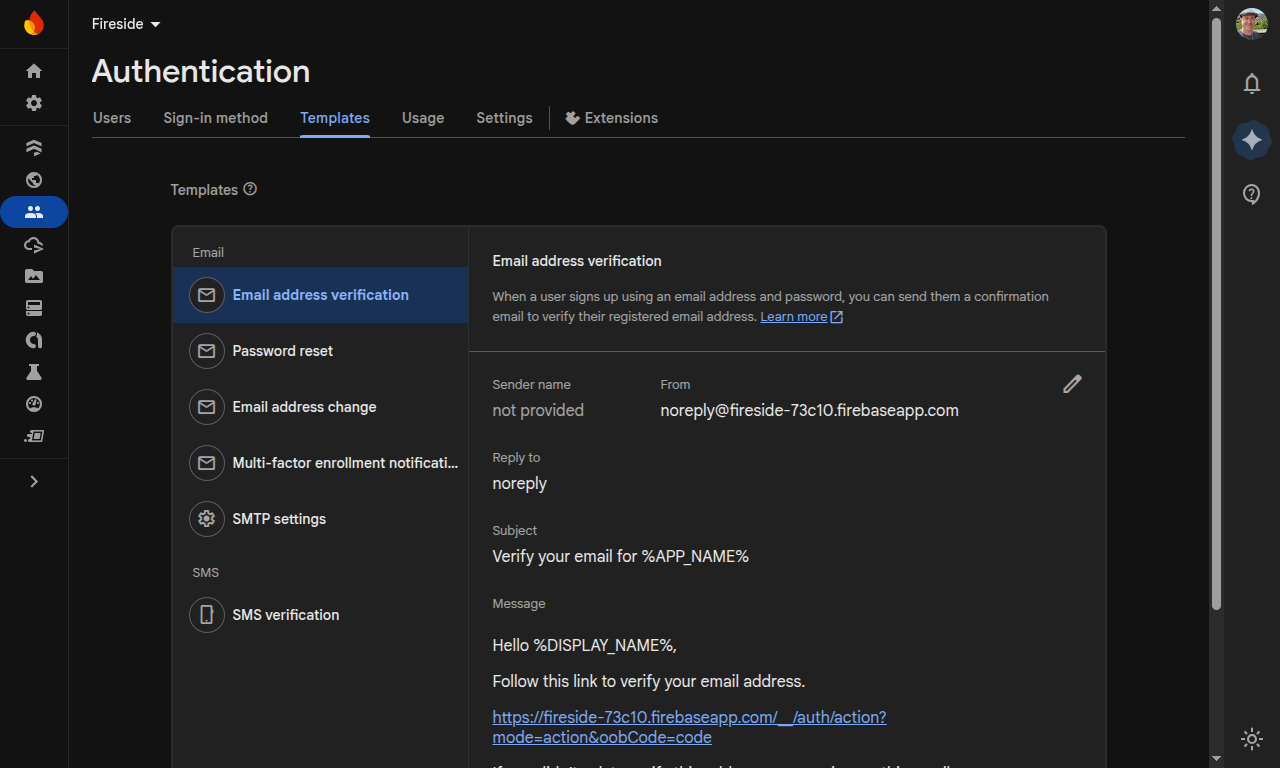
Once the domain is in the list of authorized domains, head over to the Templates tab to review the email templates. Note that the "from" email has the default Firebase domain.
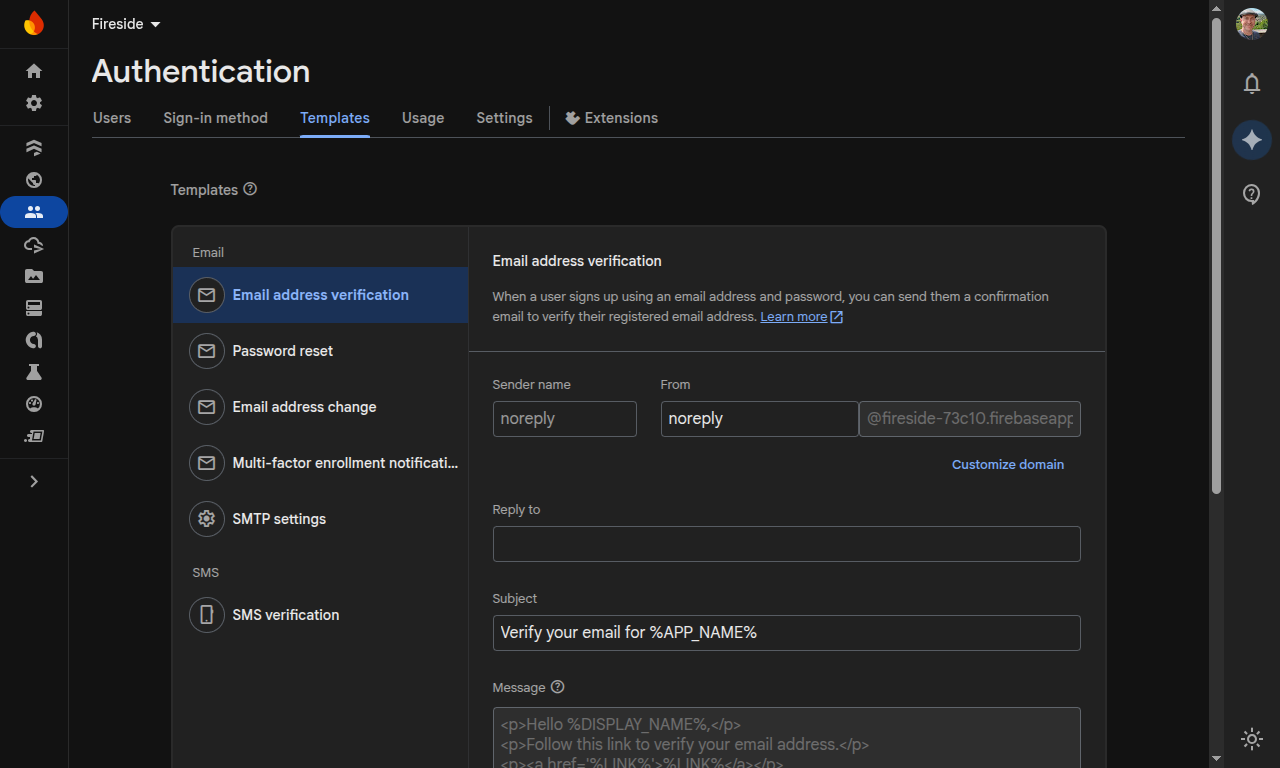
Click on the pencil "edit" icon and you'll see that you're able to customize some fields. Do what you wish here, but we're particularly interested in the "Customize domain" link below the email address.
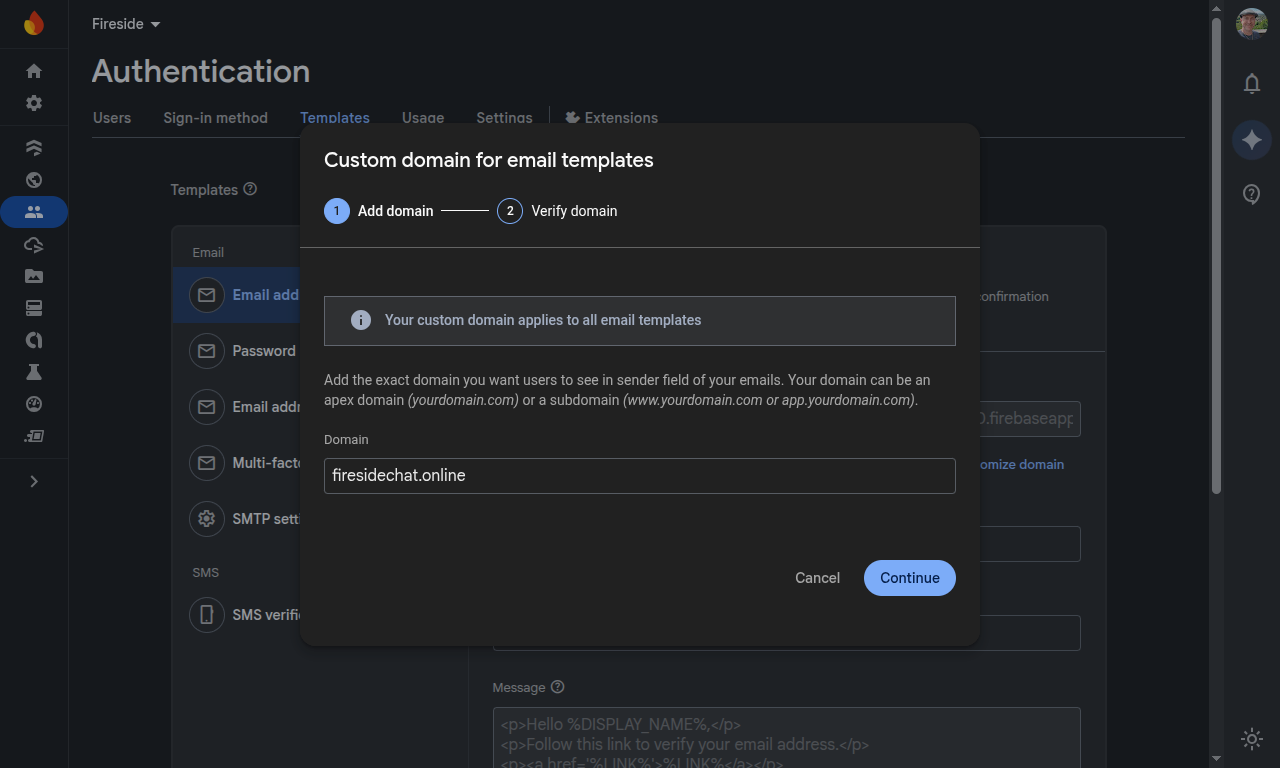
Once you've clicked the customize link you'll enter your domain once again, and then click "Continue".
Now you'll be given more DNS configuration details to be added with your DNS/domain provider. Just like the message says, it can take up to 48 hours to fully verify the domain, although it's usually faster than this.
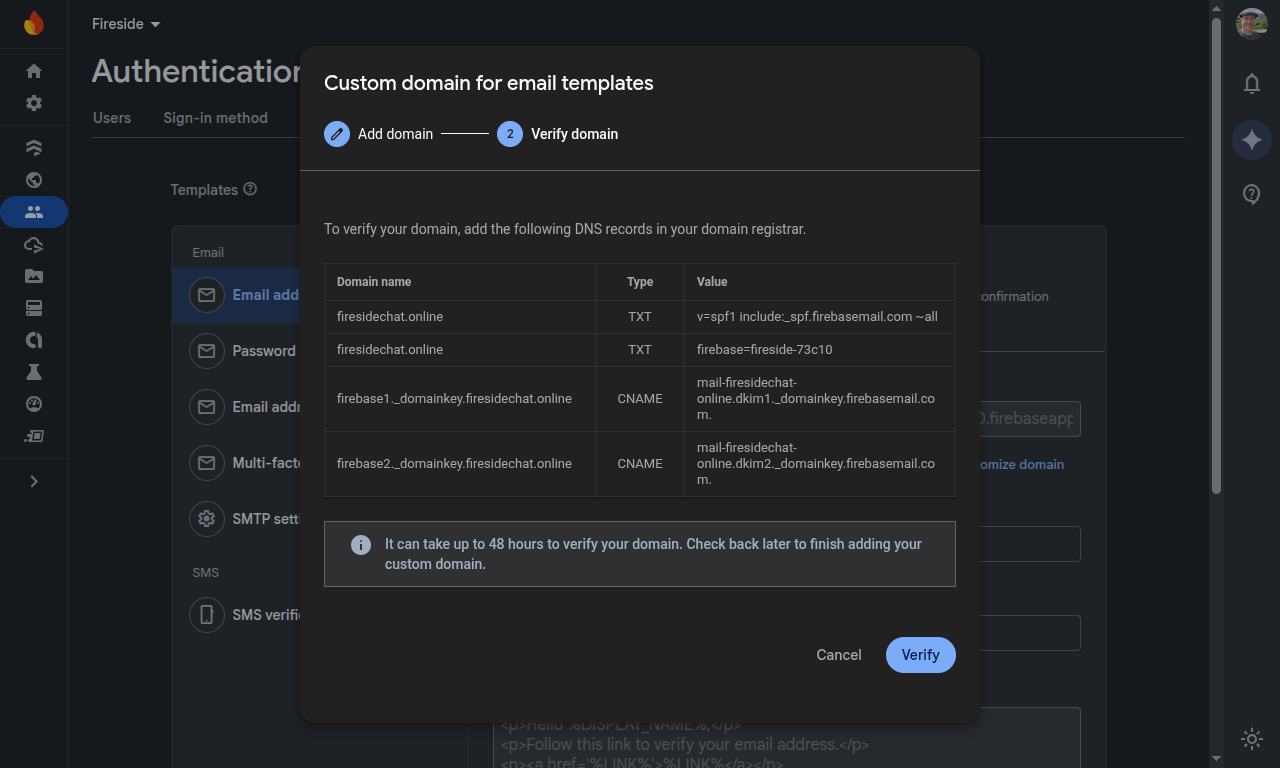
Once you click "Verify" you'll see a message that custom domain verification is in progress.
Now you can scroll down to the bottom of the Templates page and see an Action URL field that once again shows the default domain. Make a note of the exact URL because we're going to use the same pattern.
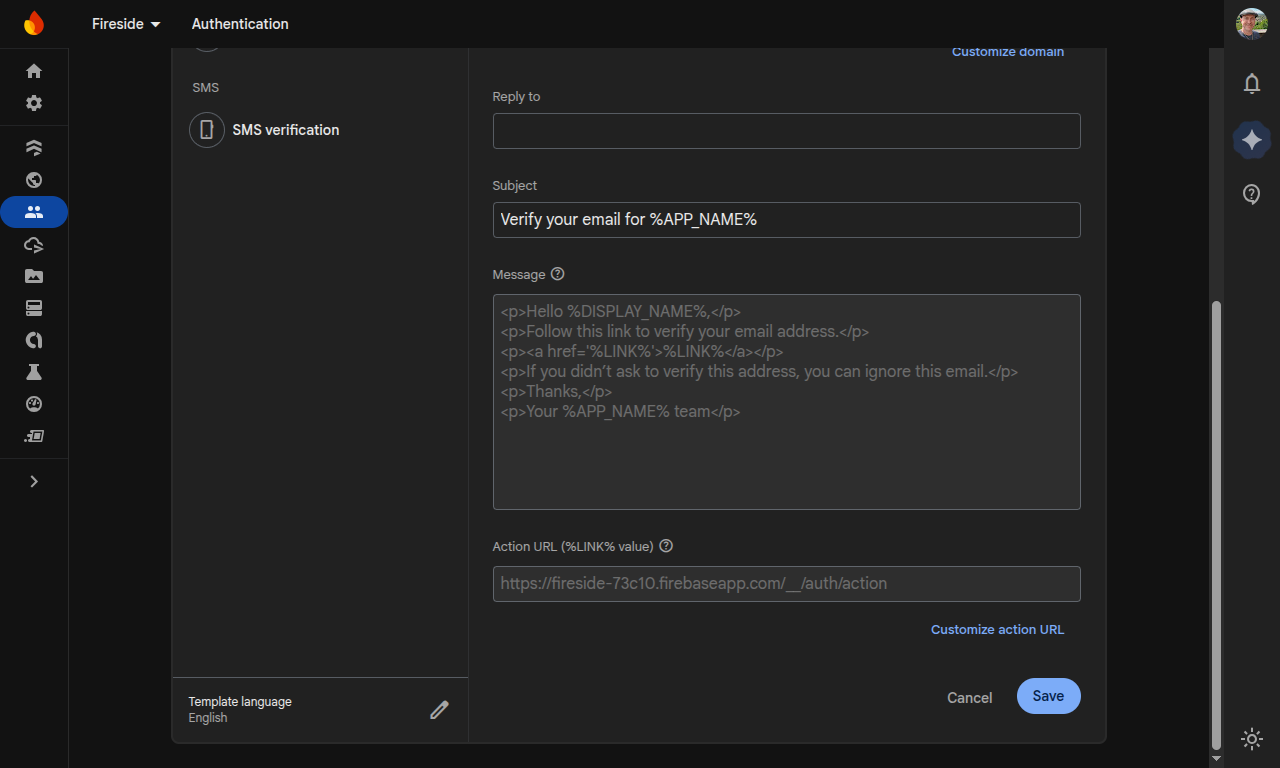
After you've clicked the "Customize action URL" link you'll enter your action URL on your domain, something like https://MyDomain.com/__/auth/action.
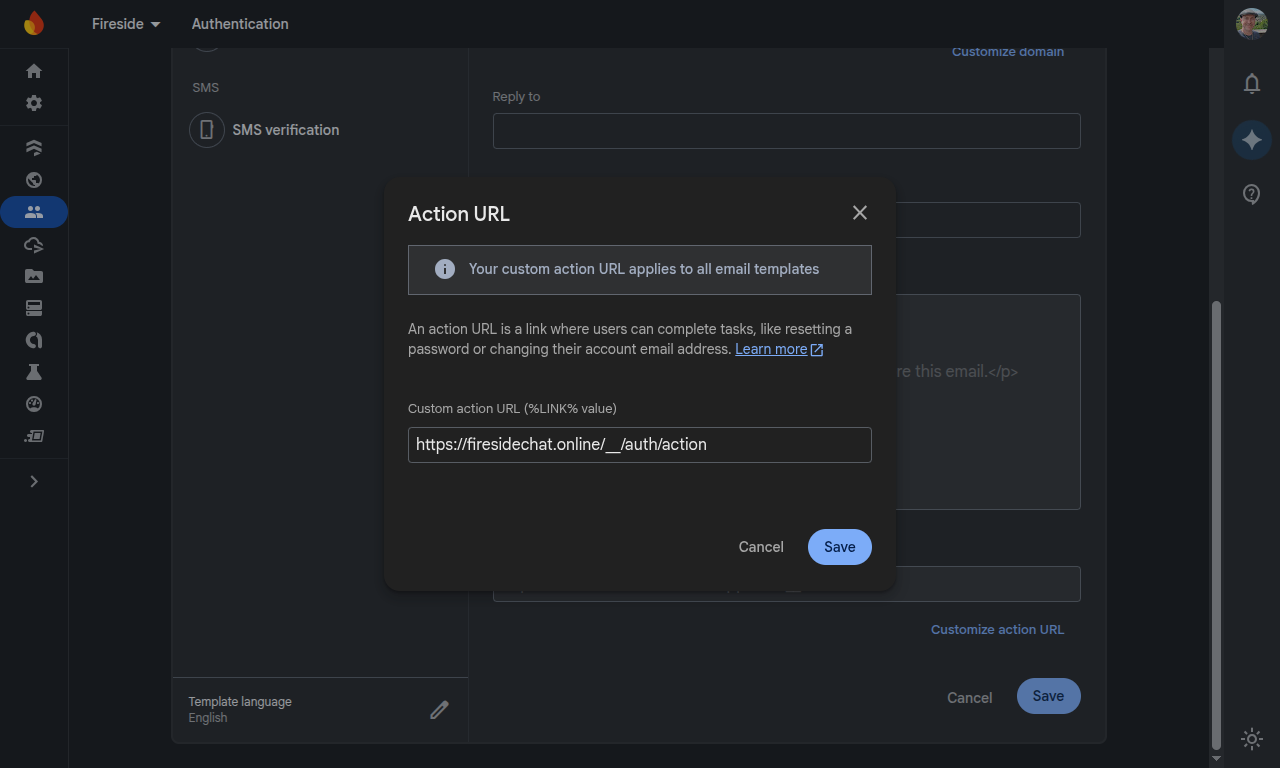
Once you save this configuration you're done in the Firebase console, but we still need to make some updates within the Google Cloud console.
Google Cloud Security
From inside the GCP console you'll type "google auth platform" into the search bar and then click on the result.
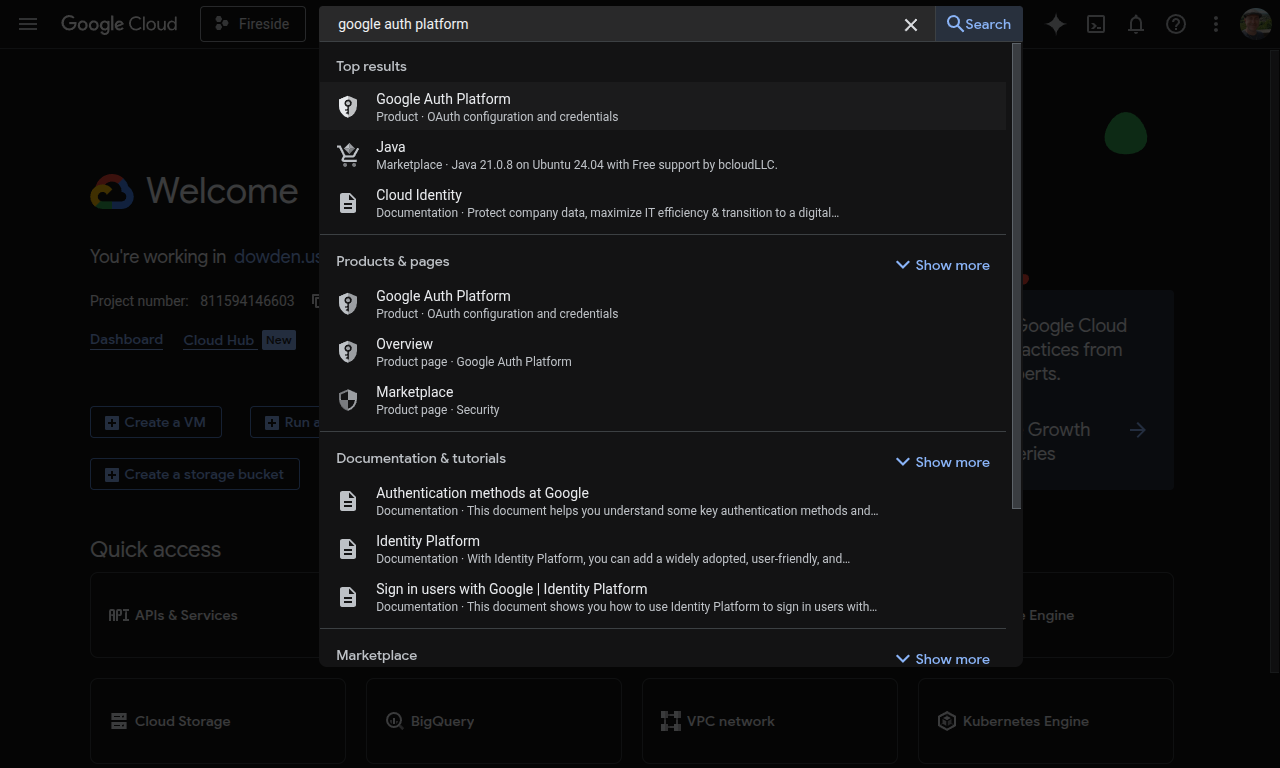
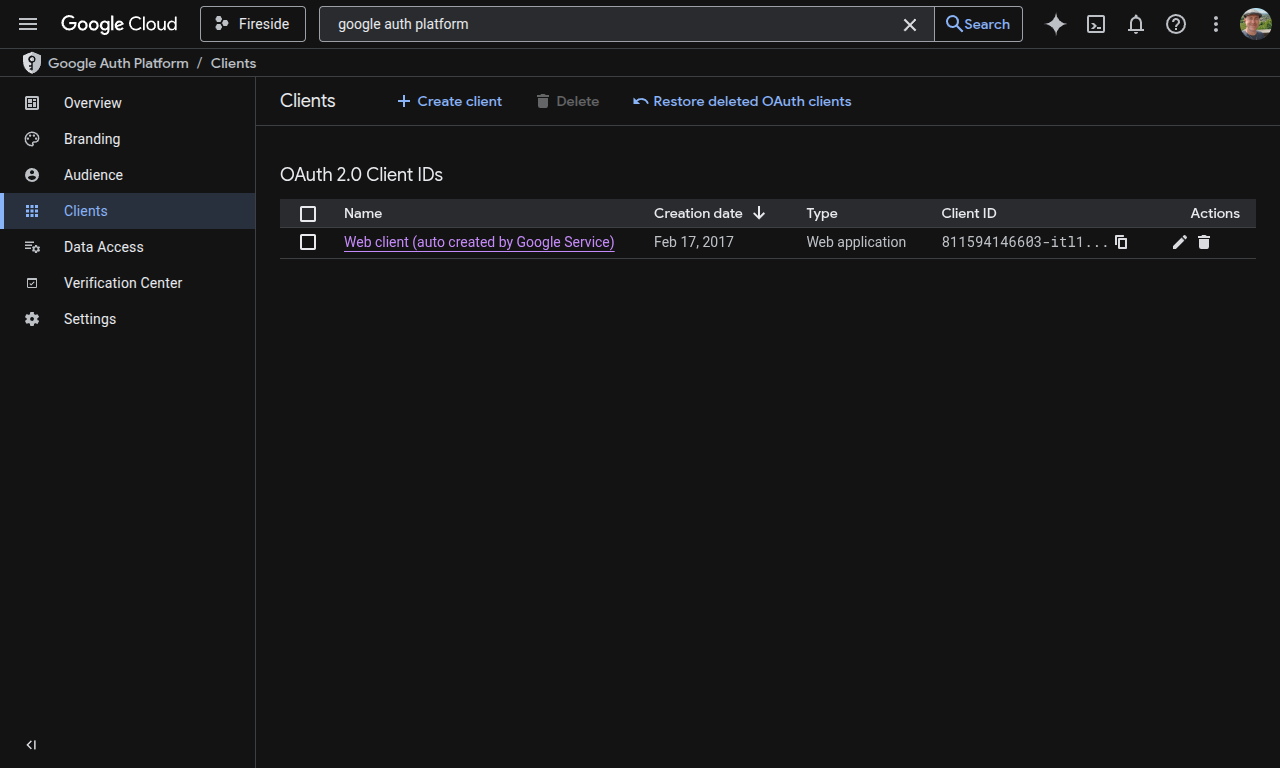
In the Google Auth Platform, select the Clients menu. The next thing you'll select is your default OAuth 2.0 Web Client from the list.
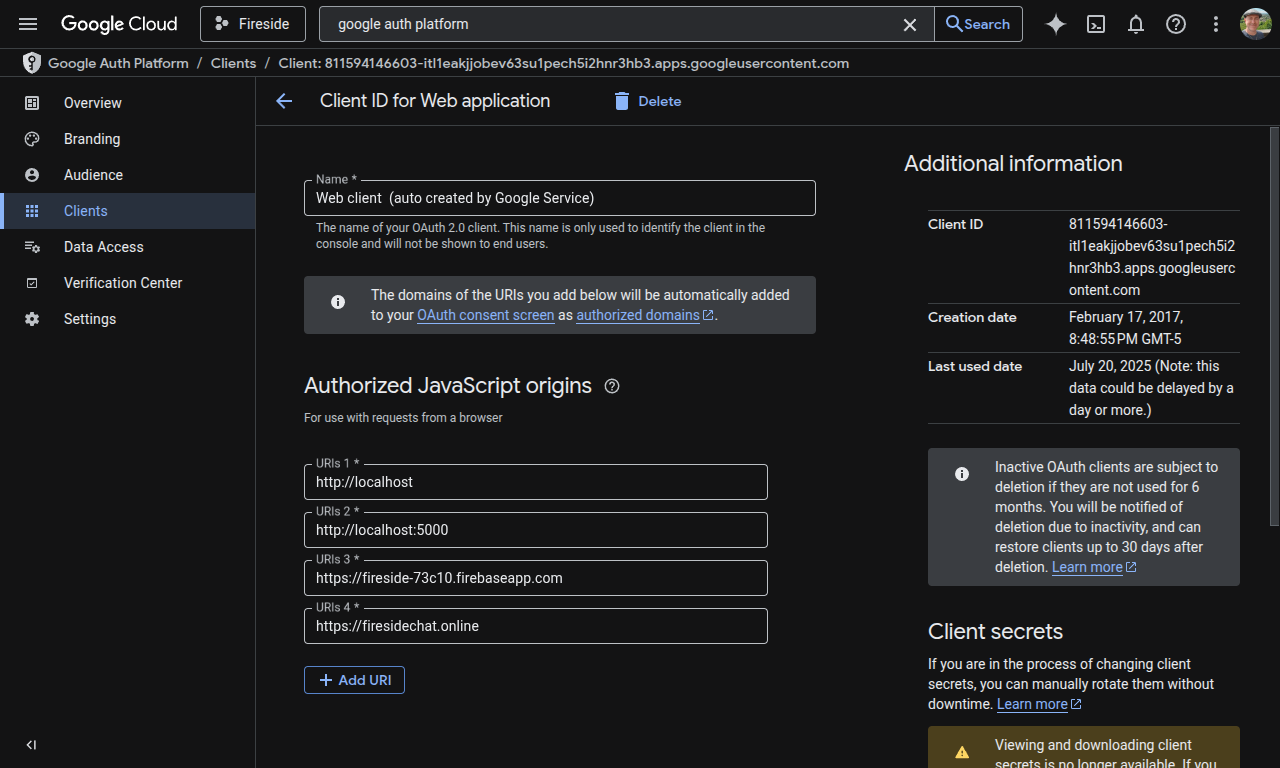
This is where we'll authorize your new domain as a JavaScript origin. Without adding the domain here you'll receive security errors when trying authenticate against your domain. When adding your URI to the list be sure to include the https:// prefix.
After this is done, scroll down the page to the Authorized redirect URIs. This is similar to the action URL we set in Firebase but should end in /handler in the format https://MyDomain.com/__/auth/handler.
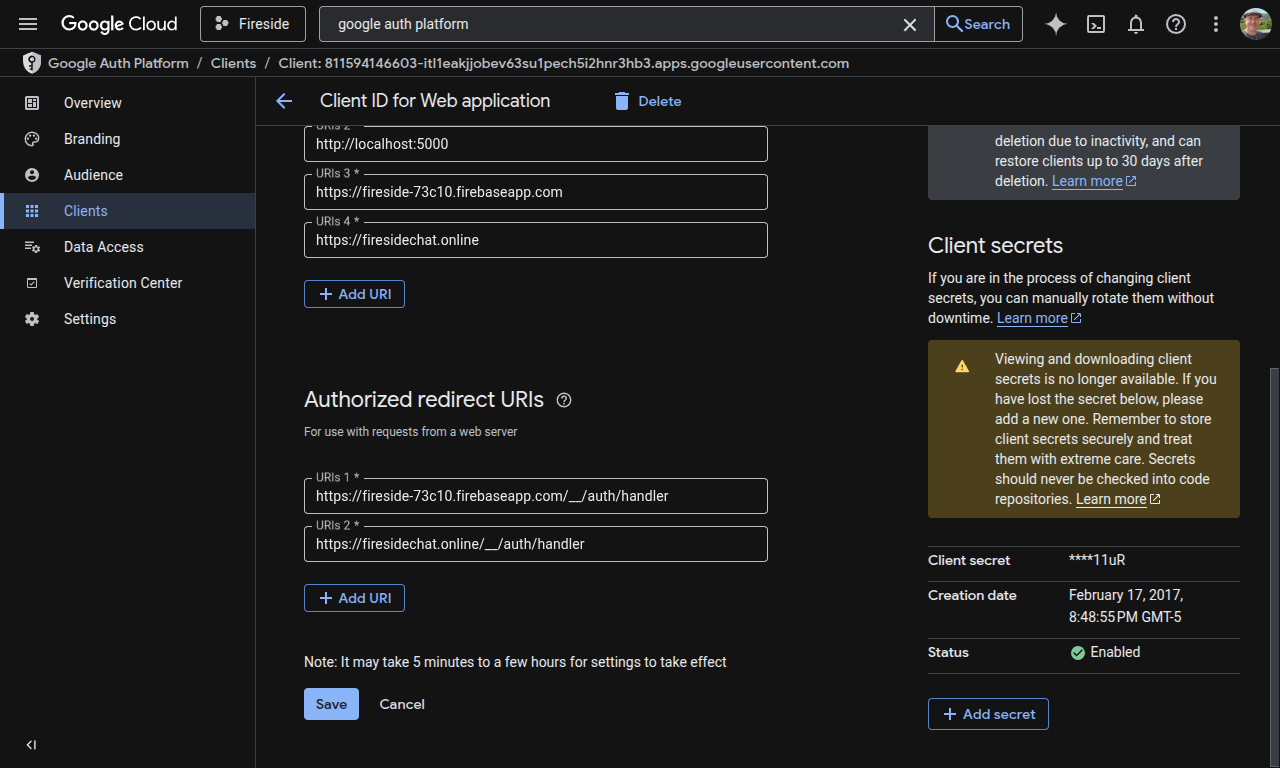
You can save the changes after you've added both URIs.
Code Updates
Once all the platform configuration is complete, you'll need to update your code to actually use the new domains.
First, update your authDomain setting from your Firebase configuration. When you copy this value out of the provided configuration it will be a firebaseapp.com subdomain, which isn't what is desired.
Next, be sure to search anywhere that you may have the old web.app or firebaseapp.com domains hard-coded and replace them with your new domain.
And finally, if you have any cloud functions that you would like to host on your domain, you can add a rewrite rule to your firebase.json file to look something like this:
  "hosting": {
    "rewrites": [
      {
        "source": "/api/search",
        "function": "apiOnGet_Chats_byEmail"
      }
    ]
  }
This will allow you to make API calls on your domain along the lines of https://MyDomain.com/api/search instead of on the default path which includes the full function name, region, etc. These default URLs will look something like https://us-central1-fireside-73c10.cloudfunctions.net/apiOnGet_Chats_byEmail and may not be what we want to expose to our users.
Summary
In conclusion, don't forget to do the following for your custom domains:
- Configure hosting domain
- Configure authorized domains for authentication
- Edit authentication template to set custom domain
- Edit authentication template to set custom handler URI
- Within GCP edit the OAuth Client within the Google Auth Platform to set the JavaScript origin and authorized redirect
- Add any cloud function rewrites within your
firebase.jsonconfiguration file - Be sure your code references the new custom domain, especially the authentication configuration which may exist within your Firebase settings
Let us know if this helped you successfully customize the domains on your Firebase projects.